
Die Aktualisierung von LinuxCNC auf eine neue Nebenversion (d.h. auf eine neue Version in der gleichen stabilen Serie, z.B. von 2.9.7 auf 2.9.8) ist ein automatischer Prozess, wenn Ihr PC mit dem Internet verbunden ist. Nach einem Minor-Release wird eine Update-Aufforderung zusammen mit anderen Software-Updates angezeigt. Wenn Ihr PC nicht mit dem Internet verbunden ist, lesen Sie bitte Updating without Network.
1. Upgrade auf die neue Version
Dieser Abschnitt beschreibt, wie Sie LinuxCNC von Version 2.8.x auf eine Version 2.9.y aktualisieren. Es wird davon ausgegangen, dass Sie eine bestehende 2.8 Installation haben, die Sie aktualisieren möchten.
Um LinuxCNC von einer Version älter als 2.8 zu aktualisieren, müssen Sie zuerst upgrade your old install to 2.8, dann folgen Sie diesen Anweisungen, um auf die neue Version zu aktualisieren.
Wenn Sie keine alte Version von LinuxCNC zu aktualisieren haben, dann sind Sie am besten aus machen eine frische Installation der neuen Version, wie im Abschnitt LinuxCNC erhalten beschrieben.
Darüber hinaus ist es unter Ubuntu Precise, Debian Wheezy oder Debian Buster eine Überlegung wert, ein Backup des "linuxcnc"-Verzeichnisses auf einem Wechselmedium vorzunehmen und eine Neuinstallaion des neuesn Betriebsystems und der LinuxCNC version durchzuführen, da diese Versionen des OS 2017, 2018 bzw. 2022 ausliefen. Wenn Sie Ubuntu Lucid nutzen, dann werden Sie dies tun müssen, da Lucid nicht mehr von LinuxCNC unterstützt wird (es war EOL im Jahr 2013).
Um größere Versionen wie 2.8 auf 2.9 zu aktualisieren, wenn Sie eine Netzwerkverbindung an der Maschine haben, müssen Sie die alten linuxcnc.org Quellen des Paketmanagers apt in der Datei /etc/apt/sources.list deaktivieren und fügen Sie eine neue linuxcnc.org apt Quelle für 2.9 hinzu, um dann mit apt die LinuxCNC-Installation zu aktualisieren.
Die Details hängen von der Plattform ab, auf der Sie arbeiten. Öffnen Sie ein terminal und geben Sie lsb_release -ic ein, um diese Informationen herauszufinden:
lsb_release -ic
Distributor ID: Debian
Codename:       Trixie
Sie sollten auf Debian Bullseye, Bookworm oder Trixie oder Ubuntu 20.04 "Focal Fossa" oder neuer nutzen. LinuxCNC 2.9.x wird auf älteren Distributionen als diese nicht laufen.
Sie müssen auch prüfen, welcher Echtzeit-Kernel verwendet wird:
uname -r
6.1.0-10-rt-amd64
Wenn Sie (wie oben) -rt- im Kernel-Namen sehen, dann laufen Sie mit dem preempt-rt Kernel und sollten die "uspace" Version von LinuxCNC installieren. Sie sollten auch uspace für "sim"-Konfigurationen auf Nicht-Echtzeit-Kerneln installieren.
Wenn Sie -rtai- im Kernel-Namen sehen, dann laufen Sie mit RTAI-Echtzeit. Siehe unten für die LinuxCNC Version zu installieren. RTAI Pakete sind derzeit für Bookworm und Buster verfügbar.
1.1. Apt Sources Konfiguration
-
Öffnen Sie das Fenster
Software-Quellen. Die Vorgehensweise ist auf den drei unterstützten Plattformen leicht unterschiedlich:-
Debian:
-
Klicken Sie auf
Anwendungsmenü, dannSystem, dannSynaptic Package Manager. -
Klicken Sie in Synaptic auf das Menü
Einstellungenund dann aufRepositories, um das FensterSoftwarequellenzu öffnen.
-
-
Ubuntu Precise:
-
Klicken Sie auf das Symbol "Dash Home" oben links.
-
Geben Sie in das Feld "Suche" den Begriff "Software" ein und klicken Sie dann auf das Symbol "Ubuntu Software Center".
-
Klicken Sie im Ubuntu Software Center-Fenster auf das Menü "Bearbeiten" und dann auf "Softwarequellen…", um das Fenster "Softwarequellen" zu öffnen.
-
-
Ubuntu Lucid:
-
Klicken Sie auf das Menü "System", dann auf "Verwaltung" und dann auf "Synaptic Package Manager".
-
Klicken Sie in Synaptic auf das Menü
Einstellungenund dann aufRepositories, um das FensterSoftwarequellenzu öffnen.
-
-
-
Wählen Sie im Fenster "Software-Quellen" die Registerkarte "Andere Software".
-
Löschen oder deaktivieren Sie alle alten linuxcnc.org-Einträge (lassen Sie alle nicht-linuxcnc.org-Zeilen unverändert).
-
Klicken Sie auf die Schaltfläche "Hinzufügen" und fügen Sie eine neue apt-Zeile hinzu. Die Zeile wird auf den verschiedenen Plattformen etwas anders aussehen:
| Betriebssystem / Echtzeitversion | Repository |
|---|---|
Debian Bullseye - preempt |
|
Debian Bookworm - preempt |
|
Debian Bookworm - RTAI |
|
Debian Trixie - preempt |
|
Debian Trixie - RTAI |
|
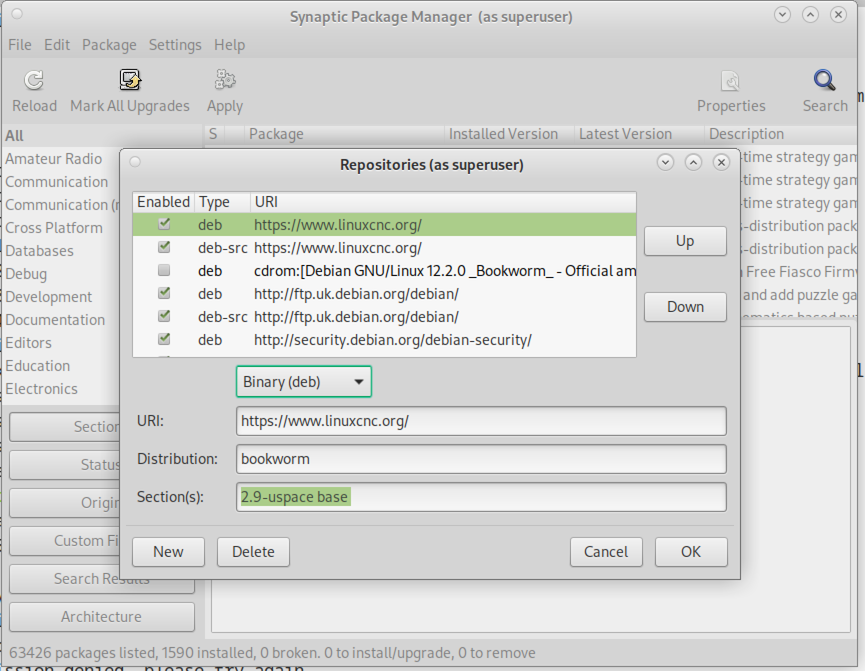
-
Klicken Sie im Fenster "Softwarequellen" auf "Quelle hinzufügen" und dann auf "Schließen". Wenn ein Fenster angezeigt wird, das Sie darüber informiert, dass die Informationen über die verfügbare Software veraltet sind, klicken Sie auf die Schaltfläche "Neu laden".
1.2. Upgrade auf die neue Version
Da Ihr Computer nun weiß, wo er die neue Version der Software erhält, müssen wir sie nun installieren.
Der Prozess unterscheidet sich wiederum je nach Plattform.
1.2.1. Debian Bullseye, Bookworm und Trixie
Debian verwendet den Synaptic Package Manager.
-
Öffnen Sie Synaptic gemäß den Anweisungen in Festlegen der apt sources oben.
-
Klicken Sie auf die Schaltfläche "Neu laden".
-
Verwenden Sie die Suchfunktion, um nach
linuxcnczu suchen. -
Das Paket heißt „linuxcnc“ für RTAI-Kernel und „linuxcnc-uspace“ für preempt-rt.
-
Klicken Sie auf das Kontrollkästchen, um die neuen Pakete linuxcnc und linuxcnc-doc-* für ein Upgrade zu markieren. Der Paketmanager kann eine Reihe zusätzlicher Pakete auswählen, die installiert werden sollen, um die Abhängigkeiten zu erfüllen, die das neue linuxcnc-Paket hat.
-
Klicken Sie auf die Schaltfläche "Anwenden", und lassen Sie Ihren Computer das neue Paket installieren. Das alte linuxcnc-Paket wird automatisch auf das neue Paket aktualisiert.
1.3. Ubuntu
-
Klicken Sie auf das Symbol "Dash Home" oben links.
-
Geben Sie in das Feld "Suche" den Begriff "Update" ein und klicken Sie dann auf das Symbol "Update Manager".
-
Klicken Sie auf die Schaltfläche "Prüfen", um die Liste der verfügbaren Pakete aufzurufen.
-
Klicken Sie auf die Schaltfläche "Updates installieren", um die neuen Versionen aller Pakete zu installieren.
2. Aktualisieren ohne Netzwerk
Um ohne Netzwerkverbindung zu aktualisieren, müssen Sie die .deb-Datei herunterladen und mit dpkg installieren. Die .debs können unter https://linuxcnc.org/dists/ gefunden werden.
Sie müssen im obigen Link nach unten gehen, um das richtige Debian Paket (.deb Datei) für Ihre Installation zu finden. Öffnen Sie ein Terminal und geben Sie "lsb_release -ic" ein, um den Versions-Bezeichner Ihres Betriebssystems zu finden.
> lsb_release -ic
Distributor ID: Debian
Codename:       trixie
Wählen Sie das Betriebssystem aus der Liste und dann die gewünschte Hauptversion wie 2.9-rt für RTAI oder 2.9-uspace für preempt-rt.
Wählen Sie als Nächstes den Computertyp aus, den Sie haben: binary-amd64 für 64-Bit-x86 oder binary-arm64 (64-Bit) für Raspberry Pi.
Wählen Sie dann die gewünschte Version am Ende der Liste aus, z.B. linuxcnc-uspace_2.9.8_amd64.deb (wählen Sie die neueste Version nach Datum). Laden Sie die deb-Datei herunter und kopieren Sie sie in Ihr Home-Verzeichnis. Sie können die Datei mit dem Dateimanager in etwas kürzeres umbenennen, wie z.B. linuxcnc_2.9.8.deb, dann öffnen Sie ein Terminal und installieren es mit dem Paketmanager mit diesem Befehl:
sudo dpkg -i linuxcnc_2.9.8.deb
3. Aktualisieren von Konfigurationsdateien für 2.9
3.1. Strikterer Umgang mit austauschbaren Interpretern
Wenn Sie nur normalen G-Code ausführen und nicht wissen, was ein austauschbarer Interpreter ist, wirkt sich dieser Abschnitt nicht auf Sie aus.
Ein selten genutztes Merkmal von LinuxCNC ist die Unterstützung für steckbare Interpreter, die durch die undokumentierte [TASK]INTERPRETER INI-Einstellung gesteuert werden.
Versionen von LinuxCNC vor 2.9.0 behandelten eine falsche [TASK]INTERPRETER-Einstellung, indem sie automatisch auf die Verwendung des Standard-G-Code-Interpreters zurückgriffen.
Seit 2.9.0 führt ein falscher [TASK]INTERPRETER-Wert dazu, dass LinuxCNC den Start verweigert. Beheben Sie diese Bedingung, indem Sie die Einstellung [TASK]INTERPRETER aus Ihrer INI-Datei löschen, so dass LinuxCNC den Standard-G-Code-Interpreter verwendet.
3.2. Canterp
Wenn Sie nur normalen G-Code ausführen und den austauschbaren Interpreter "canterp" nicht verwenden, hat dieser Abschnitt keine Auswirkungen auf Sie.
Für den extrem unwahrscheinlichen Fall, dass Sie canterp verwenden, sollten Sie wissen, dass das Modul von /usr/lib/libcanterp.so nach /usr/lib/linuxcnc/canterp.so verschoben wurde und die Einstellung [TASK]INTERPRETER entsprechend von libcanterp.so nach canterp.so geändert werden muss.
3.3. Spindel-Einschränkungen in der INI
Es ist nun möglich, in den [SPINDLE]-Abschnitt der INI-Datei zu konfigurieren
MAX_VELOCITY = 20000 Die maximale Spindeldrehzahl (in U/min)
MIN_FORWARD_VELOCITY = 20000 Die minimale Spindeldrehzahl (in U/min)
MAX_REVERSE_VELOCITY = 20000 Diese Einstellung wird standardmäßig auf MAX_FORWARD_VELOCITY gesetzt sofern nicht explizit angegeben.
MIN_REVERSE_VELOCITY = 3000 Diese Einstellung entspricht MIN_FORWARD_VELOCITY, jedoch für die umgekehrte Spindeldrehung. Ist dieser Wert nicht angegeben, wird sie standardmäßig auf MIN_FORWARD_VELOCITY gesetzt.
INCREMENT = 200 Legt die Schrittweite für Befehle zum Erhöhen und Verringern der Spindeldrehzahl fest. Dies kann für jede Spindel einen anderen Wert haben. Diese Einstellung ist bei AXIS und Touchy wirksam, aber beachten Sie, dass einige Kontrollbildschirme die Dinge anders handhaben können.
HOME_SEARCH_VELOCITY = 100 - Wird akzeptiert, aber ist derzeit ohne Funktion
HOME_SEQUENCE = 0 - Wird akzeptiert, ist aber derzeit ohne Funktion
4. Update von Konfigurationsdateien für 2.10.y
Touchy: Die Touchy-MACRO-Einträge gehören nun in den Abschnitt [MACROS] der INI anstelle von [TOUCHY]. Dies ist Teil der Vereinheitlichung der INI-Einstellungen zwischen den GUIs.
The mesa_modbus framework (modcompile and the mesa_modbus.c.tmpl driver template) has been removed. Configurations using it must migrate to the hm2_modbus driver with mesambccc-compiled MBCCB files, see hm2_modbus(9) and mesambccc(1). The 2.9 release retains the framework, so its documentation remains available in the 2.9 docs.
5. Preview renderer now requires OpenGL 3.3 core
The G-code preview shared by AXIS, the GTK screens (Gremlin / gmoccapy / gscreen / GladeVCP hal_gremlin / QtPlasmaC), and QtVCP was rewritten to use a single modern OpenGL 3.3 core-profile renderer (shaders, VBOs, an offscreen framebuffer for click selection, a glyph-atlas for overlay text). The legacy fixed-function path (display lists, immediate mode, GL_SELECT picking, glBitmap text, line stipple, GL_LIGHTING) has been removed. There is no runtime switch and no in-process fallback.
Hardware requirement. OpenGL 3.3 core is needed. On the supported platform (Linux with Mesa) this is available on Intel Sandy Bridge (2011) and newer, AMD r600 and newer, and nouveau. Machines without a capable GPU can use Mesa’s software renderer (llvmpipe), which handles the line-dominated preview acceptably:
LIBGL_ALWAYS_SOFTWARE=1 linuxcnc myconfig.ini
If a core context cannot be created the GUI exits at start-up with a diagnostic naming the OpenGL 3.3 requirement and suggesting LIBGL_ALWAYS_SOFTWARE=1, rather than starting with a blank or corrupt preview.
|
Warning
|
BREAKING: out-of-tree screens that inject raw legacy OpenGL
Custom screens that subclass the in-tree preview classes and override a drawing internal to emit raw fixed-function OpenGL (immediate mode, display lists, |
The immediate-mode drawing helpers of the old renderer (linuxcnc.draw_lines, linuxcnc.line9, linuxcnc.draw_dwells, linuxcnc.positionlogger.call()) are retired. They keep their names, signatures and argument checking so that out-of-tree callers still import and run, but they draw nothing and raise a DeprecationWarning on first use. The in-tree GUIs bake geometry to VBOs and upload the backplot from positionlogger.points().
5.1. Notes for integrators and driver authors
-
AXIS / Togl. The vendored Togl widget (
src/emc/usr_intf/axis/extensions/togl.c) gained a boolean-coreprofileoption (default false). When true it creates the context withglXChooseFBConfig+glXGetVisualFromFBConfig
glXCreateContextAttribsARB(OpenGL 3.3 core), raising a descriptive Tcl error on failure. AXIS always enables it. The default (false) path is unchanged, sovismachand any out-of-tree Togl users keep their legacy contexts. -
Gremlin (GTK). GTK3 only hands out core contexts through
GtkGLArea, so the gremlin widget still builds its context by hand via GLX, now requesting 3.3 core withglXCreateContextAttribsARB. PyOpenGL cannot resolve that extension entry point (it comes back as a null function), so gremlin loadslibGLdirectly withctypesand creates and binds the context (choose-fbconfig / make-current / swap) through that one handle to avoid mixing context pointers. -
Line width in core profiles. A forward-compatible core context (Qt requests one) rejects
glLineWidth(> 1)withGL_INVALID_VALUEeven thoughGL_ALIASED_LINE_WIDTH_RANGEreports a larger maximum. The renderer probes the accepted width once and caches it, so thick lines (the selection highlight, dwell markers) degrade to 1 px on such drivers instead of raising; a non-forward-compatible core context (AXIS’s Togl, Gremlin’s GLX) keeps the wider lines. Thick lines via quad expansion are a possible future improvement. -
vismach is unaffected: it keeps its legacy Togl context and immediate-mode drawing; only its camera consumes the (now GL-free) explicit matrices from
glnav.
5.2. The program is built in C++ during the parse
gcode.parse no longer drives the preview through per-move Python callbacks. For a canon that subclasses gcode.RendererCanon - rs274.glcanon.GLCanon is one, so every in-tree preview is - the whole program is built in C++ (GCodeRenderer, src/emc/rs274ngc/gcode_renderer.{hh,cc}): the g92/rotation/g5x transform, arc segmentation, rigid taps, (AXIS,hide) suppression, the vertices per drawn plane, the extents, the path lengths and the dwell and tool-change records. The finished program is handed over once, at the end of the parse, as a gcode.PreviewGeometry through the canon’s adopt_geometry(). A parse reads two more things off such a canon: program_geometry (the GEOMETRY strings and the rotation offsets) and arcdivision, which defaults to 64 and is read once at parse start. Every parse starts from a zero transform with nothing drawn; where the machine stands arrives as the caller’s initcode (a G53 G0 per axis), which the leading-traverse drop repositions on rather than draws. A RendererCanon subclass without a callable adopt_geometry is a TypeError from gcode.parse, not a silent fall back to callbacks.
The per-event canon protocol is unchanged for every other canon: rs274.interpret.PrintCanon, the interpreter tests and out-of-tree users of gcode.parse still receive straight_feed, arc_feed, next_line and the rest exactly as before, and rs274.interpret.Translated / ArcsToSegmentsMixin remain for them. The gcode module itself was rewritten on pybind11; its functions keep their names and signatures. One behaviour change: gcode.linecode() snapshots the running parse, and raises ValueError when no parse is in progress.
|
Warning
|
BREAKING: out-of-tree canons that subclass
rs274.glcanon.GLCanonOn a rendered parse the interpreter forwards only
|
5.3. How the preview is put together
The drawing itself lives in lib/python/rs274/glcanon_scene.py, in four tiers. Nothing here changes what the preview looks like; it is where to start reading if you need to fix or extend one part of it.
-
Parts. One class per drawing concern - grid, program geometry, extents, bounding box, offsets, small origin, axes, machine-limits box, tool, live backplot, DRO overlay, the
user_plot()hook. A part draws that one thing and nothing else. Adding a preview element means adding a part and placing it in the scene’s order, not editing an existing part. -
The scene.
PreviewSceneholds the parts in draw order and runs them. Visibility is decided by the scene, not the part: it evaluates each part’svisible(ctx)and simply does not call a part whose gate is false, sodraw()may assume it is visible and must not open with anif not shown: return. Gates that couple parts belong to the scene too - the extents-versus-bounding-box either/or, and the translucent compositingprogram_alphawraps the program in. -
Primitives. Services several parts share - a line array, a wireframe box, Hershey vector text, the tool-cone mesh - reached as
ctx.prim. Letters are a primitive that axes, extents and offsets all use, not a sibling of "axes". -
Passes. The preview is three sets of depth/blend state, not an arbitrary order: world geometry, translucent geometry drawn over it at equal depth, and the screen-space overlay. Each part declares its
pass_; the scene sets the state when the pass changes. A part that needs something else for its own drawing (the tool’s constant-alpha blend) restores it afterwards.
Transforms go through a scoped model-view stack: with ctx.mv.push(): restores the previous transform on exit, including when an exception unwinds through it, so a part cannot leak a transform onto a later one. Offsets, small origin and axes share one such scope (RelativeCoordGroup), because the axes are drawn in the offset frame the offsets progressively build.
Parts read a FrameContext - an explicit, enumerated list of machine, view and renderer state, built once per frame by GlCanonDraw - rather than the widget itself. That is what lets them be tested without a window: build a context by hand, call part.draw(ctx), and assert on the vertices it emitted.
Click-to-select is not a part - it draws nothing to the screen. Picker renders the same program geometry into an offscreen framebuffer with line numbers encoded as colour and resolves the nearest hit; GlCanonDraw.select(x, y) delegates to it. It shares one ProgramGeometry with the drawing part, so the pickable geometry and the drawn geometry cannot drift apart.
Setting GLCANON_DEBUG=1, the preview’s one verbosity switch, raises the rs274 logger to DEBUG, checks glGetError after each pass, logs which parts the scene drew and which it skipped whenever that split changes, and reports depth/blend state a part left behind.
6. Neue HAL-Komponenten
6.1. Nicht-Echtzeit
mdro mqtt-publisher pi500_vfd pmx485-test qtplasmac-cfg2prefs qtplasmac-materials qtplasmac-plasmac2qt qtplasmac-setup sim-torch svd-ps_vfd
6.2. Echtzeit
anglejog div2 enum filter_kalman flipflop homecomp limit_axis mesa_uart millturn scaled_s32_sums tof ton
7. Neue Treiber
Ein Framework wurde eingeführt zur Steuerung von ModBus-Geräten mit den seriellen Ports auf vielen Mesa-Karten. http://linuxcnc.org/docs/2.9/html/drivers/mesa_modbus.html
Ein neuer GPIO-Treiber für alle GPIO, der von der gpiod-Bibliothek unterstützt wird, ist jetzt enthalten: http://linuxcnc.org/docs/2.9/html/drivers/hal_gpio.html